

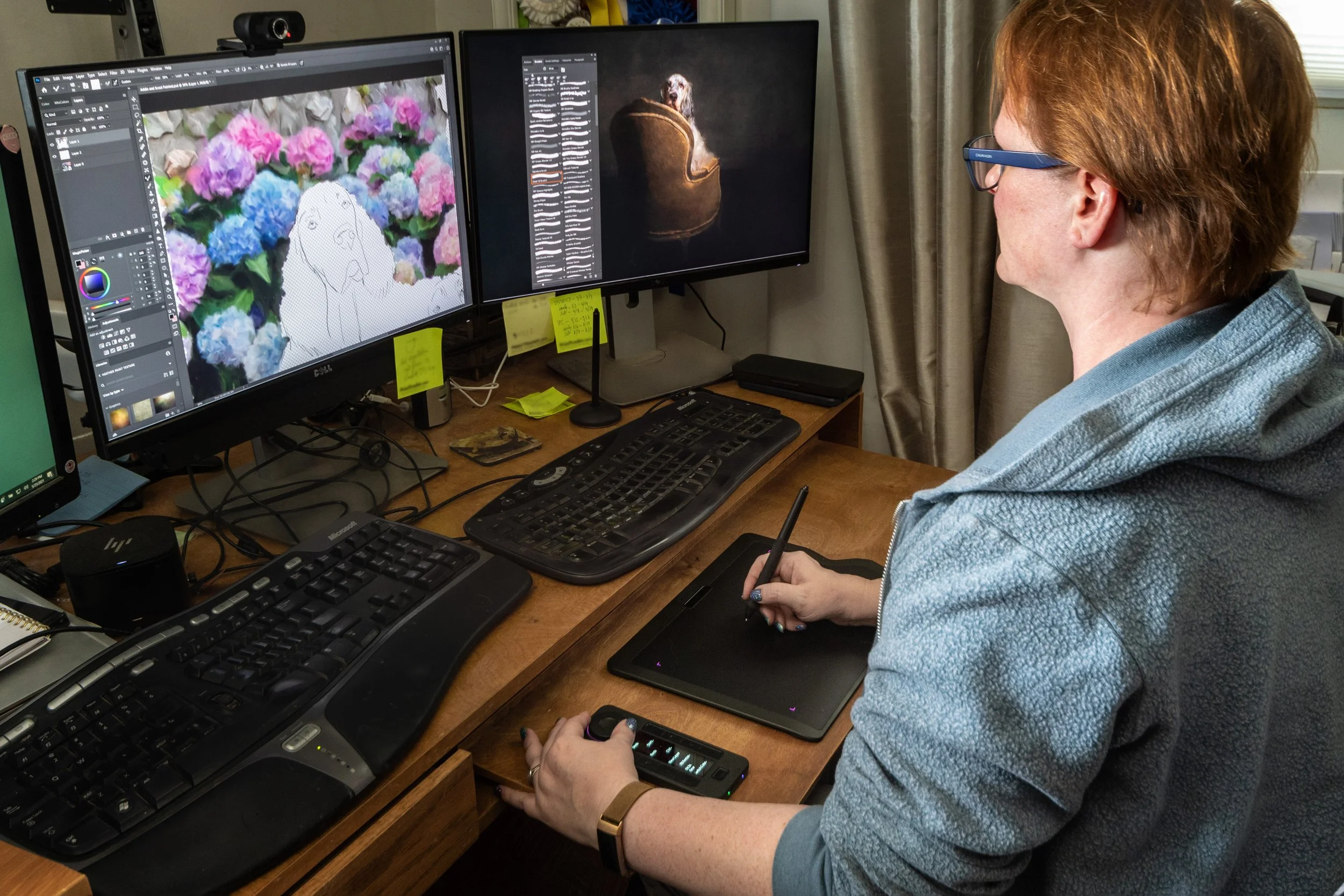
Xencelabs new pen tablet may be exactly what you didn’t realize you were looking for. Designed with input from a bevy of artists and illustrators, the tablet offers a sleek and uncluttered interface. With a gentle curve to rest your wrist and a near invisible transition from edge to work surface, the entire tablet becomes the active area. Three small customizable buttons at the top can be programmed to do different things depending on which applications you’re running, and you can add an infinite number of applications within the control panel.
The tablet takes up a generous amount of desk real estate but allows you take advantage of every square inch – perfect for those using multiple screens or who need to work with incredible detail. It’s similar in size to the Wacom Intuos Pro medium tablet, but the Xenselabs tablet is slightly thinner and narrower and doesn’t have the dials and buttons on the side.
The tablet surface is not interchangeable but has just enough tooth to create a smooth and pleasant experience. Your working area is bounded by four caret-shaped lights which provide a subtle clue in your peripheral vision of where your stylus will land when you put it down. To add a bit of whimsy, the color and brightness of those carets are programmable. Mine are currently green to show that I’m working with global settings but will switch to hot pink when I move to Photoshop. I’m inordinately amused by the ability to change the colors, and this feature absolutely convinced me that artists had been involved in the overall design.
The tablet comes with two pens. Both include 8,192 levels of pressure sensitivity, tilt recognition, and an eraser. The pens have different shapes and weights to please different artists and hand sizes and both are charged by contact with the tablet surface so they have no battery and are relatively light. The larger one has three programmable buttons, and the thinner pencil-style one has two programmable buttons. The pen case includes 10 nibs (which are interchangeable with Wacom nibs), a nib extractor, a USB-C adaptor (in case your computer doesn’t have a USB-A port), and a USB dongle for wireless convenience. The pens are extremely responsive, picking up the lightest strokes and translating them beautifully to the screen. I’ve always used the larger pen shape in the past but find myself switching between the two pens depending on the work I’m doing. The designers claim the third button on the larger pen is for 3D applications, but they’ve been useful in all of my 2D work as well. I appreciate having options. With the exception of the Wacom Pro Pen 1 (KP503E), Wacom pens will not work with the Xencelabs tablet. However, since the buttons on the Pro Pen will not work well, Xencelabs recommends that you stick with their included pens to get the best performance.
While the tablet is great, it’s the Quick Keys that elevate this tablet to superstardom. Available as part of a bundle or a separate add-on (which works only with the Xenselabs tablet), the additional interface is endlessly programmable, allowing you to toggle easily through your favorite shortcuts and functions. The OLED display rotates so that you can place the Quick Keys in whatever spot and configuration you’d like and still read the toggle information. Do you want it above the tablet? Below? To the left? With the dial at the top or at the bottom? Horizontally with the dial on the left? Regardless of where or how you position the Quick Keys, you can change the orientation of the text so that you can easily read it. You can also control the naming of the keys through the tablet settings panel so that it makes the most sense to you.
The Quick Keys interface also includes a quick and accurate raised dial so that you can change brush sizes or cycle between layers at a touch. And here again there’s the option to change the LED colors based on the mode and application you’re in so that a quick glance can tell you that you’re in the right menu.
While I initially missed the inset dial on my Wacom tablet, the Quick Keys have been a game changer. I can place them in a comfortable spot near my non-dominant hand and find the dial without looking in order to change brush sizes while I’m painting. A quick tap of the button in the center of the dial moves me through different modes, and the keys mean that I don’t need to reach over to a keyboard to access frequently used shortcuts. These were options that were available on the Wacom but I never bothered using because I couldn’t remember what I’d programmed. With the bright OLED display, you only need to glance down to know exactly what key does what.
The included wireless dongle pairs with both the tablet and the Quick Keys. Managing the cables for both the tablet and the Quick Keys became a little cumbersome, especially when I was moving the Quick Keys to the opposite side of the tablet. Being able to plug in the dongle and work wirelessly was a great option. And it only takes up one USB-A port on my computer for both interfaces. If you need more ports, the tablet and Quick Keys can work with a powered hub. The charge on the Quick Keys lasts up to 52 hours so you would only have to plug it in every few days. The charge on the tablet lasts 11 hours – long enough to get a good day’s work in, but you’ll have to plug it in to charge every evening.
There is no touch option on the Xenselabs tablet. The developers said that after questioning various users, it was decided that the touch was not commonly used and they would focus on other aspects. Given that I’ve never used my touch option in all the years I’ve had a pen tablet, I don’t disagree.
Installation was simple with the appropriate drivers available to download online and there is a robust FAQ and support forum if you run into any issues.
In my testing, I’ve been using the Xenselabs tablet non-stop for painting, photo editing, and running around the internet. If I needed a new tablet, I would definitely put the Xenselabs tablet at the top of my list. And honestly, those Quick Keys might just make me consider swapping out my existing one.
The tablet drivers are compatible with PC (Windows 7 or newer), Mac (macOS 10.12 or newer – it will not work with an iPad), and Linux. The Xenselabs tablet currently retails for $279.99, the Quick Keys for $89.99, and tablet/Keys bundle for $359.99.
CONS
No Touch option
No interchangeable surface
No integrated dial – must purchase add-on
No 360º rotation on pens
PROS
Two included pens, both with the tilt recognition
Great ergonomics and design
Add-on Quick Keys

Finished digital painting created in Photoshop using the Xencelabs Pen Tablet.